Less searching
Continue recent work in a single click.
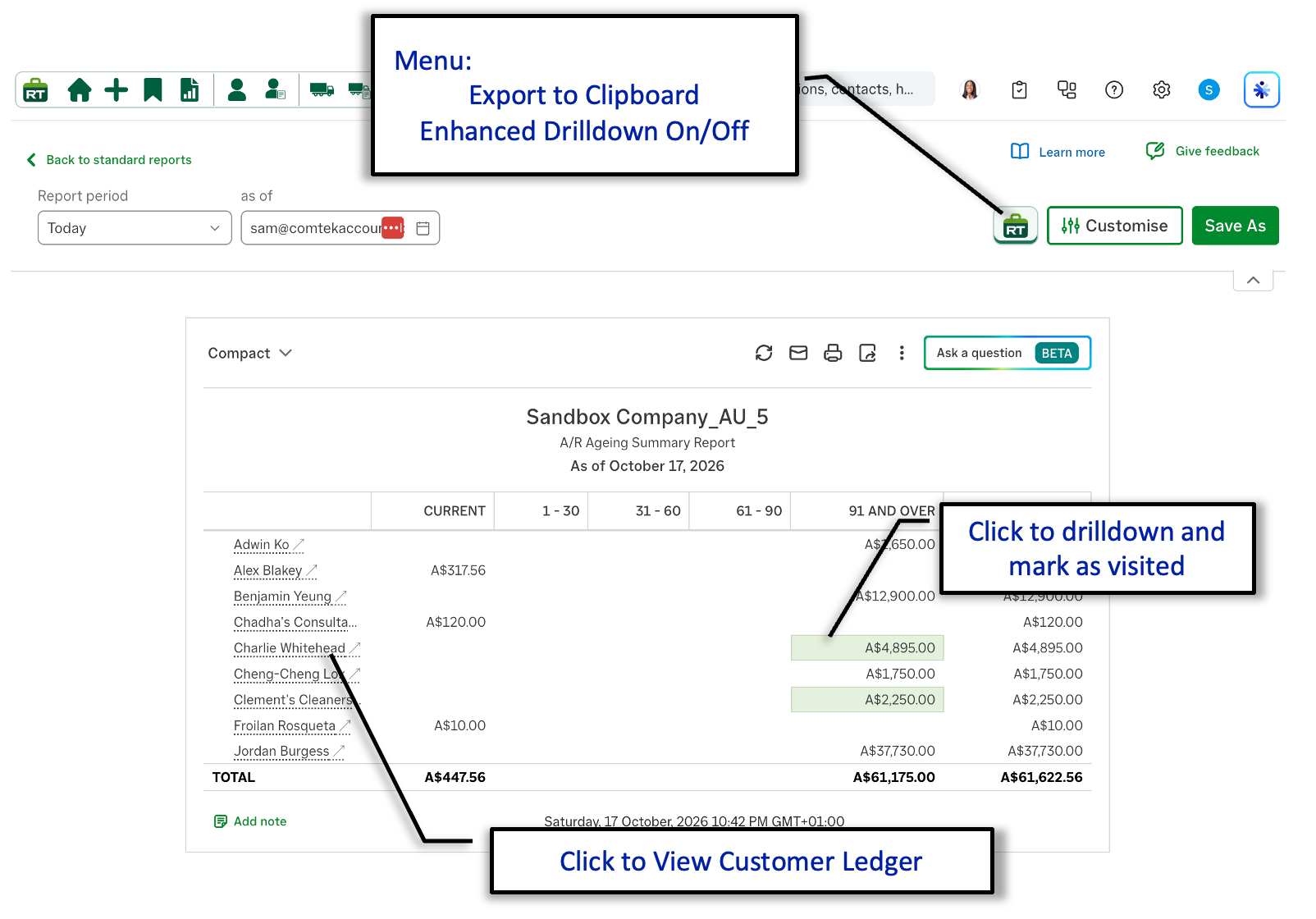
The recent-transactions shortcut keeps the customer work you have most recently accessed in a compact menu. Each row includes the transaction type and reference, value and customer name, making it easier to recognise the right item before opening it.
- Click an entry to return directly to the transaction.
- Hold Shift while clicking to open it in a new tab.
- Use the star to keep an important transaction among your favourites.
- Use the direct-opening control when you want to leave the menu in place.
Recent customers and favourites
Keep key customers above the changing recent list.
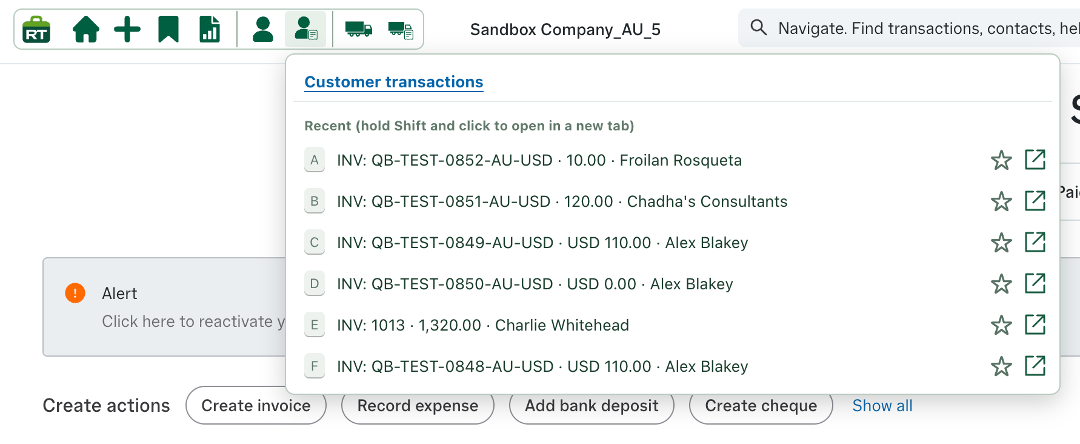
The Customers shortcut separates saved favourites from the contacts you have opened recently. Important customers stay at the top, while the recent list updates as you work.
- Select the star beside a customer to add or remove them from favourites.
- Click a customer to return to their account quickly.
- Hold Shift while clicking to open the customer in a new tab.
- Use the direct-opening icon when you want an immediate route to the customer record.
Quickly access transactions
Fewer steps between the customer and the work.
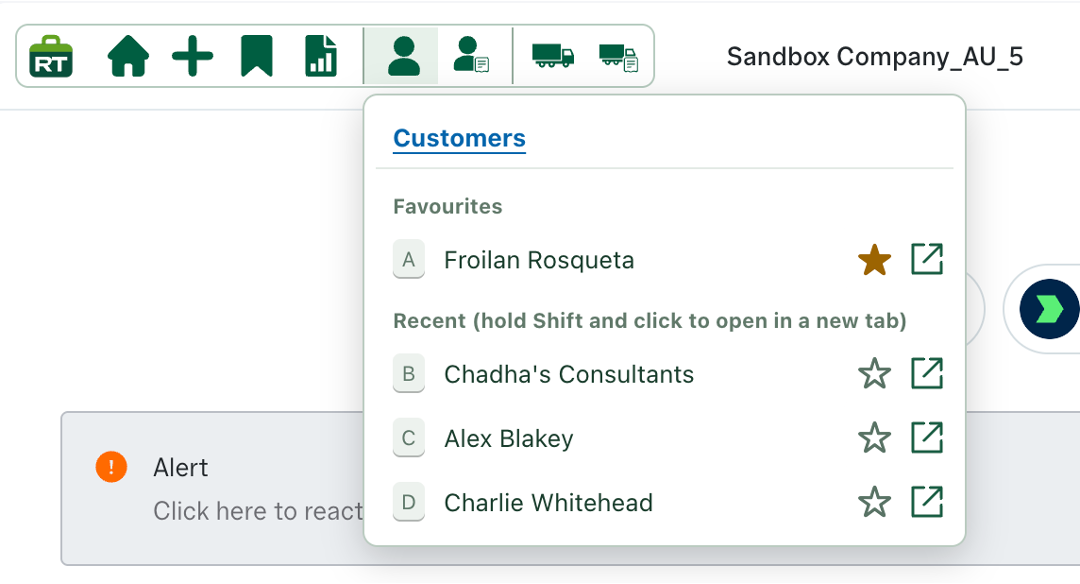
RachelsTools adds shortcuts around the customer ledger so you can filter, inspect and open the underlying accounting records more directly.
Customer P&L
Use the RachelsTools menu to move directly to customer-focused profit and loss reporting.
Filter the ledger
Switch between open, overdue or all transactions, or restrict the list to a recent 3, 6 or 12-month period.
Edit or view
Double-click a transaction line to open it without first locating the separate View/Edit link.
Open the customer ledger
Double-click a customer reference to move directly to that customer’s ledger.
Also on expenses
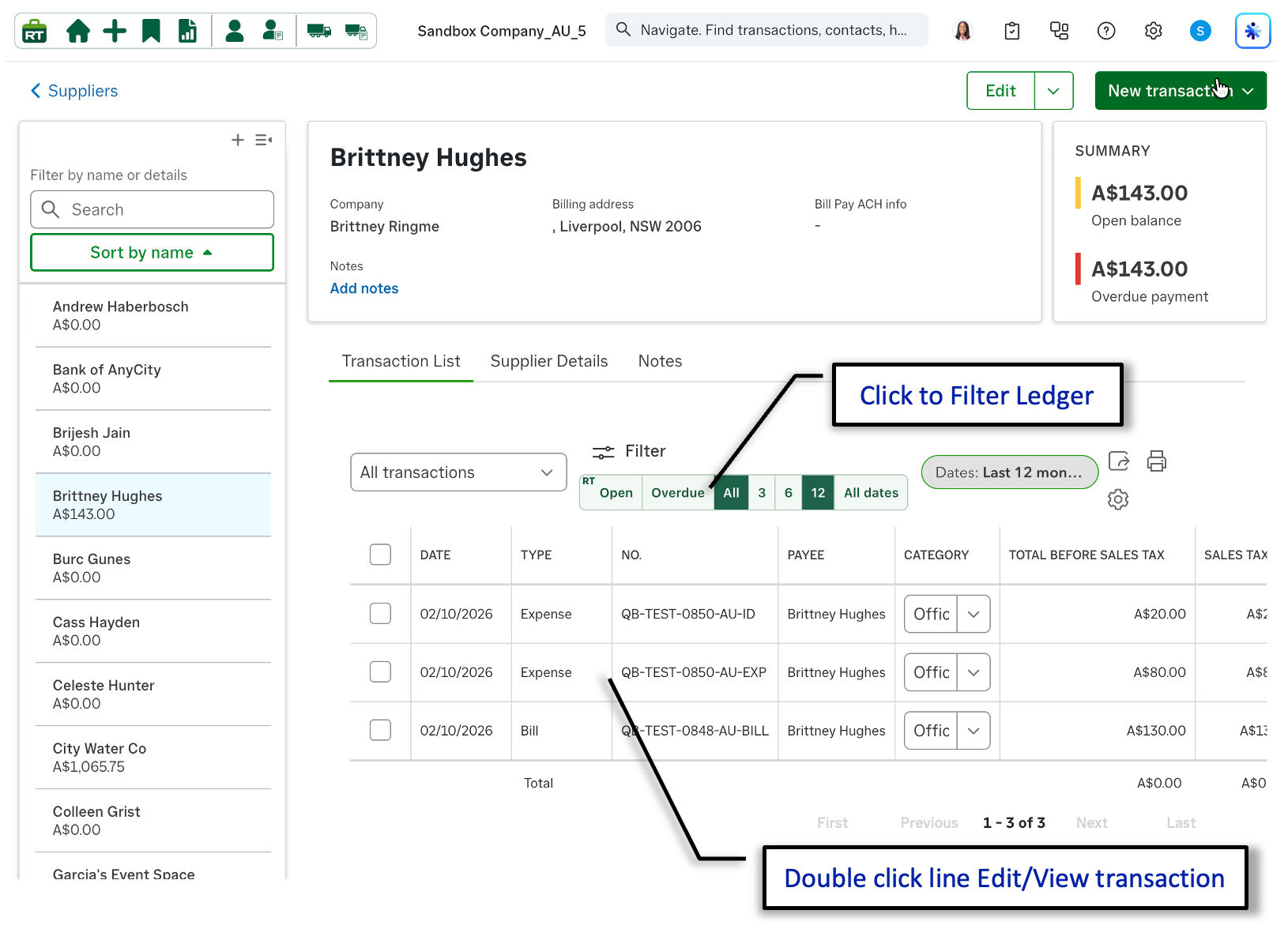
The same shortcuts on supplier and expense ledgers.
RachelsTools brings the faster ledger controls to supplier records as well as customer accounts, keeping the interaction consistent across sales and expense work.
- Filter the supplier ledger to open, overdue or all transactions.
- Limit the list to the last 3, 6 or 12 months, or show all dates.
- Double-click an expense or bill line to open it for viewing or editing.
- Continue using the standard QuickBooks transaction and date filters alongside the RachelsTools controls.
Enhanced Balance Sheet and P&L
Turn financial reports into faster working documents.
RachelsTools adds practical actions to Balance Sheet and Profit and Loss reports, helping you move from a figure to the underlying detail or account setup with fewer steps.
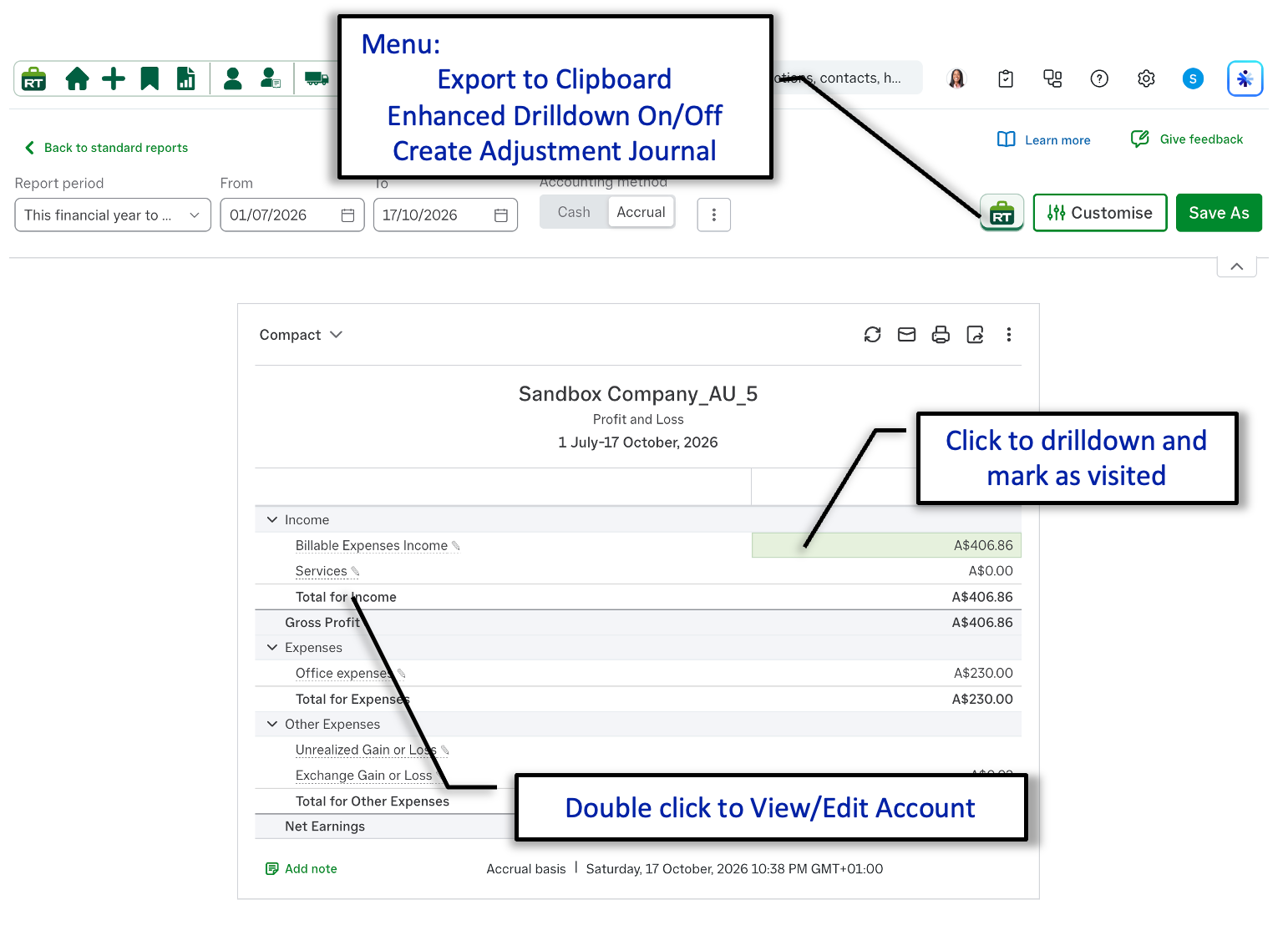
Report menu
Export the report to the clipboard, switch enhanced drill-down on or off, or begin an adjustment journal.
Enhanced drill-down
Click a value to open its underlying detail and mark the visited figure so it is easier to track your progress.
Edit the account
Double-click an account name to move directly to the account details for viewing or editing.
Aged debtors, creditors and receivables
Move from an aged balance to the customer ledger.
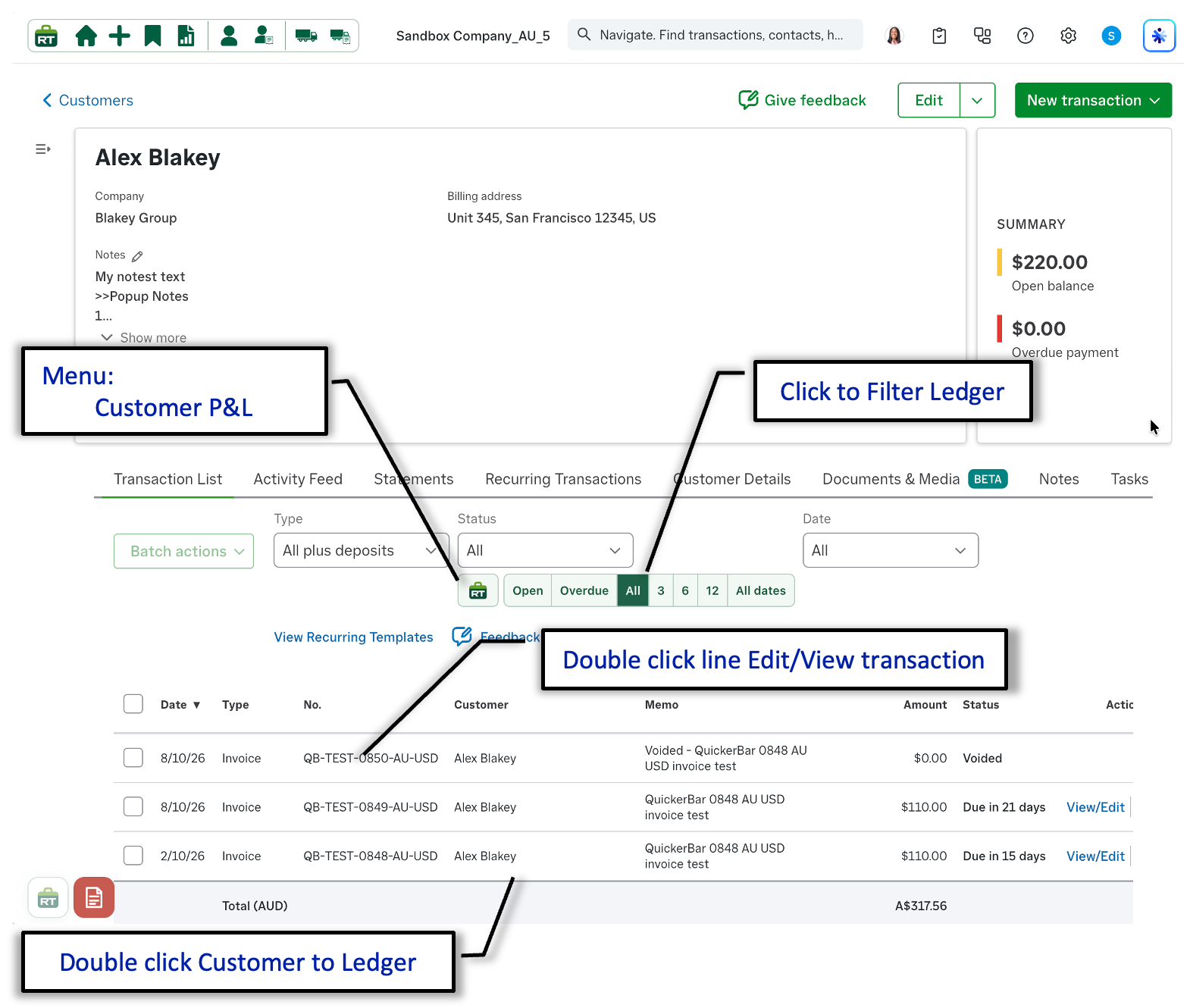
The enhanced drill-down workflow also supports aged receivables, debtors and creditors reports, helping you investigate outstanding balances without losing your place.
- Export the report to the clipboard from the RachelsTools menu.
- Switch enhanced drill-down on or off for the report.
- Click an ageing value to open its detail and mark the visited figure.
- Click a customer or supplier name to open the relevant ledger directly.